Fire TV / Firestick Guide
OTT Navigator on Fire TV & Firestick: Installation Guide
Set up OTT Navigator on Fire TV without mixing installation, playlist, EPG, and playback problems together. Use the decision tree to identify the failing layer before changing settings.
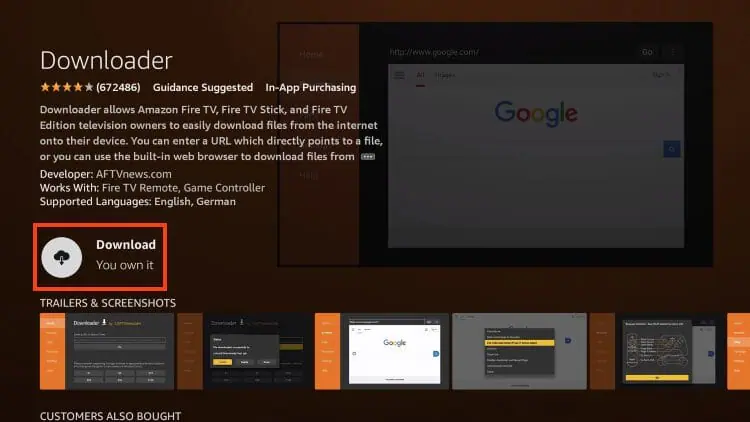
First separate installation from IPTV setup
Installing OTT Navigator only installs the player. It does not provide television channels, movies, series, or a playlist. You still need an authorized playlist or provider connection after the application is installed.
This distinction is important on Fire TV because an installation problem and an IPTV connection problem can produce very different symptoms. Diagnose them separately instead of reinstalling the app every time a channel fails.
Choose the installation route carefully
OTT Navigator's published documentation describes multiple distribution paths, including a standalone build and third-party app-store distribution. The correct route depends on the device and the distribution currently offered to it.
| Situation | Recommended approach | Why |
|---|---|---|
| Trusted store listing is available | Use the store route. | The package source is easier to verify and maintain. |
| No suitable store listing | Check OTT Navigator's documented standalone distribution path. | Avoid relying on an unrelated APK mirror. |
| Modified or “premium unlocked” APK | Do not treat it as an official package. | Its provenance and integrity cannot be assumed from the filename. |
Fire TV installation checklist
- Identify which installation/distribution method is appropriate for your Fire TV device.
- Use a trusted source for the application package.
- Complete the installation before entering IPTV credentials.
- Open OTT Navigator and confirm that the application itself starts normally.
- Only then configure your playlist or provider.
If the app installs but immediately closes, behaves differently after an update, or cannot be opened, treat that as an application/device problem first. Do not troubleshoot the IPTV playlist until the player itself is stable.
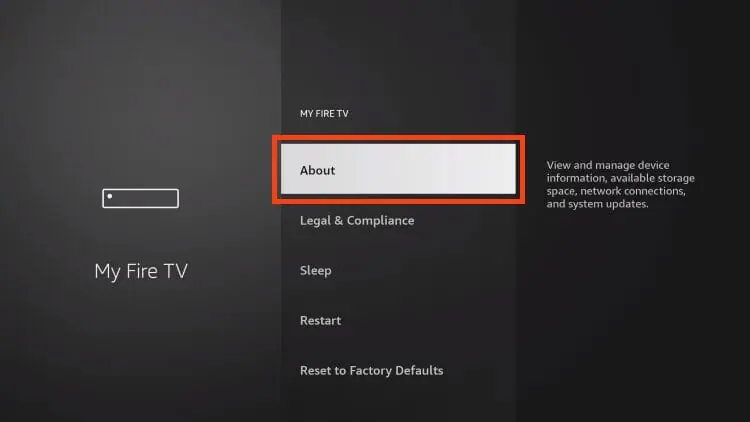
Add your IPTV source after installation
Use the format supplied by your authorized IPTV provider. OTT Navigator supports M3U/M3U8 playlists and Xtream-style provider credentials.
| What you received | Use | Common mistake |
|---|---|---|
| Complete M3U/M3U8 URL | Playlist URL configuration | Removing part of the URL or its query parameters. |
| M3U file | Playlist file workflow | Assuming a local file will be as convenient on TV as on a phone. |
| Server + username + password | Xtream-style provider setup | Putting credentials into an M3U field instead. |
Remote-first setup on Fire TV
Long URLs and passwords are difficult to enter with a TV remote. Before saving a provider, check every character and make sure you did not accidentally add a space or omit a symbol.
If a provider connection fails immediately after manual entry, re-check the credentials before changing network or playback settings. One character can turn a valid account into what looks like a connection failure.
EPG should be diagnosed separately
If channels appear and play but program information is missing, the playlist connection is already doing part of its job. Investigate the EPG source and channel mapping rather than reinstalling OTT Navigator.
- Confirm that the provider supplies EPG data.
- Reload EPG from the app's EPG settings.
- Check provider EPG configuration if the source is separate from the playlist.
- Check channel identifiers or mappings when guide data exists but attaches to the wrong channel.
Fire TV playback diagnosis
Once the playlist has loaded, test several channels. The number of failing channels is more informative than repeatedly testing one stream.
| Symptom | First test | Likely layer |
|---|---|---|
| Playlist is empty | Recheck URL/credentials and provider access. | Playlist / authentication |
| All channels fail | Compare network and another authorized stream. | Network / provider / playback |
| Only some channels fail | Compare working and failing streams. | Individual stream / compatibility |
| Playback repeatedly buffers | Test another stream and network before changing player settings. | Network / provider / device |
Premium and Fire TV
Premium access is separate from the IPTV source. A playlist failing to load is not, by itself, evidence that premium activation is broken. The published FAQ documents OttNav Companion for devices without Google Play; use the current product documentation when account or activation details need to be verified.
Read the OTT Navigator Premium guide →Fire TV troubleshooting decision tree
| Problem | Start here | Avoid doing first |
|---|---|---|
| Cannot install | Verify distribution method and device compatibility. | Download random modified APKs. |
| App opens, no channels | Check playlist/provider configuration. | Change decoder settings. |
| Channels load, playback fails | Test multiple streams and network conditions. | Reinstall the application repeatedly. |
| EPG missing | Reload EPG and check source/mapping. | Replace a working playlist without testing EPG separately. |
| Only one stream fails | Compare it with other channels. | Treat the entire Fire TV installation as broken. |
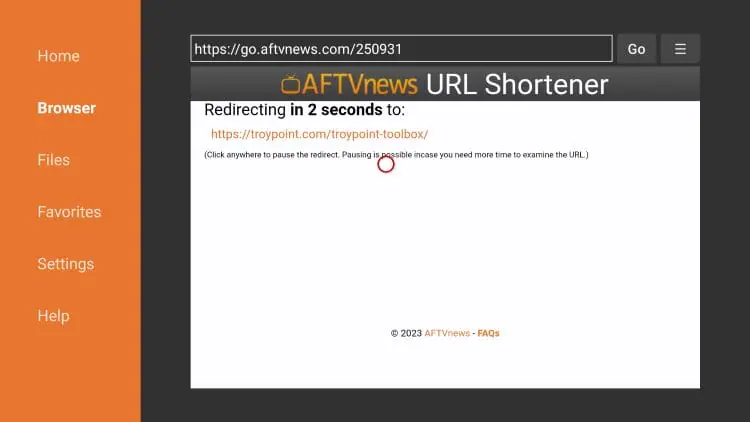
The Fire TV rule of thumb
Diagnose in order:installation → provider/playlist → channels → EPG → playback → device/network. Once you know which layer fails, use the corresponding guide instead of changing several variables at once.
Related guides
Official sources
For current app capabilities, distribution details, and documented settings, verify details against the product's published resources.