Troubleshooting
OTT Navigator Not Working: Find the Failing Layer
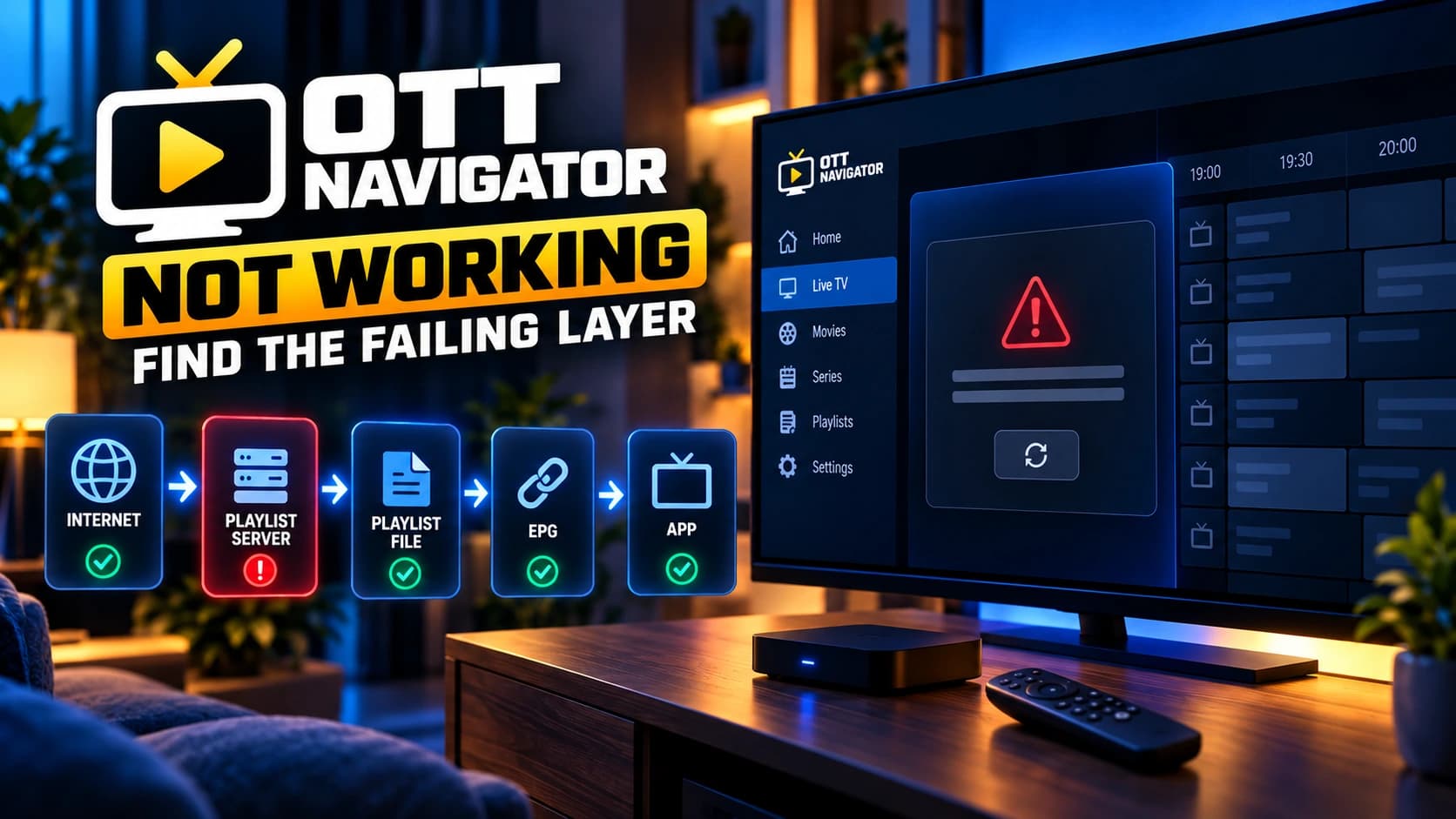
When OTT Navigator stops working, do not change ten settings at once. Use this diagnostic flow to separate application problems from playlist, provider, EPG, network, device, and playback failures.
Start with the symptom
“OTT Navigator is not working” can describe several different failures. A playlist that will not load needs a different diagnosis from a playlist that loads but has no EPG, or a stream that loads and then buffers. Identify the first visible failure before changing settings.
| Symptom | Start with | Main layer |
|---|---|---|
| App will not open | Restart device and verify installation/update state. | App / device |
| Playlist will not load | Verify exact URL or provider credentials. | Playlist / provider |
| Playlist loads but channels are empty | Refresh and inspect the provider response. | Provider / playlist |
| Channels load but do not play | Test several channels. | Stream / network / playback |
| Video works but EPG is blank | Reload EPG and check mapping. | EPG |
| Everything buffers | Compare channels, network, and device. | Network / provider / playback |
1. If the app itself is the problem
- Close OTT Navigator and open it again.
- Restart the Android device or TV/box.
- Confirm that the app is installed normally and that an available update can be applied.
- If the failure began immediately after a configuration change, undo the most recent change before rebuilding the entire setup.
If the app opens normally and reaches the playlist interface, stop treating this as an application-installation problem and move to the playlist or playback layer.
2. If the playlist will not load
Check the source exactly as supplied. For an M3U URL, verify the complete address. For provider credentials, verify the server, username, password, and any provider-specific requirements.
- Check for copied characters, spaces, or truncated URLs.
- Confirm that the credentials belong to the source you are trying to add.
- Check whether the provider account or playlist is still active.
- Do not convert an M3U URL into separate fields unless the provider actually supplied an Xtream-style credential set.
OTT Navigator's published FAQ notes that some provider connections require additional fields or exact request details. If the same provider works in another app but not in OTT Navigator, the provider-specific configuration becomes an important part of the investigation.
3. If the playlist loads but channels are missing
This is different from a failed login. Confirm whether the library is completely empty or only certain categories/channels are absent. Partial results can indicate provider-side filtering, playlist contents, or source-specific data rather than an application-wide failure.
Useful comparison
If multiple unrelated channels load, the basic provider connection is functioning. Investigate the specific missing category or channel before changing playback settings.
4. If channels load but playback fails
A playlist entry and a playable stream are not the same thing. Test several channels from different categories. Record whether the failure affects every stream, one category, or one channel.
| Test | What it tells you |
|---|---|
| Several channels fail | Investigate network, provider, or playback configuration. |
| One channel fails | The stream or provider data may be channel-specific. |
| Same source works elsewhere | Compare device, app configuration, and provider-specific requirements. |
| Same source fails everywhere | The source/provider/network path deserves priority. |
5. If EPG is the only thing broken
Do not reinstall the app just because programme data is missing. Use the dedicated EPG workflow: reload the guide, inspect source processing, then check channel mapping and timezone if necessary.
Open the EPG troubleshooting guide →6. If everything buffers
Buffering is a different diagnostic problem from an invalid playlist. Compare multiple channels, check the local network, and test the same source on another compatible device when possible. A useful result is one that narrows the failure rather than simply changing a buffer value.
Open the buffering guide →Use a known-good comparison before changing settings
When the symptom is unclear, compare one controlled variable at a time. For example, test another channel from the same source, then the same channel again after checking the network, rather than changing the playlist, decoder, and device settings simultaneously.
| Comparison | What it helps isolate |
|---|---|
| Another channel, same playlist | Individual stream vs. wider source/device issue. |
| Same channel, another device | Device/playback path vs. source/network. |
| Same device, another network | Local network path vs. provider/stream. |
| EPG separately from playback | Guide-data problem vs. channel-stream problem. |
A clean troubleshooting order
- Confirm the app opens.
- Confirm the source can be added.
- Confirm channels populate.
- Test several streams.
- Test EPG separately.
- Only then change advanced playback or interface settings.
This order keeps the number of variables small. It also prevents a guide problem, a provider problem, and a playback problem from being treated as one generic “OTT Navigator” failure.
Official sources
For current app capabilities, distribution details, and documented settings, verify details against the product's published resources.